Simple Products
A simple product is one thing at one price. If a buyer does not need to choose a size or colour, this is the right type, and it is the fastest way to a first listing.
#Before you start
- A finished storefront so buyers can see who you are. See Storefront.
- Your own photographs of the actual item, not a stock or competitor image.
- Packed weight and dimensions if the product ships.
- A decision on quantity: sold singly, by the dozen, or as a bundle.
#Steps
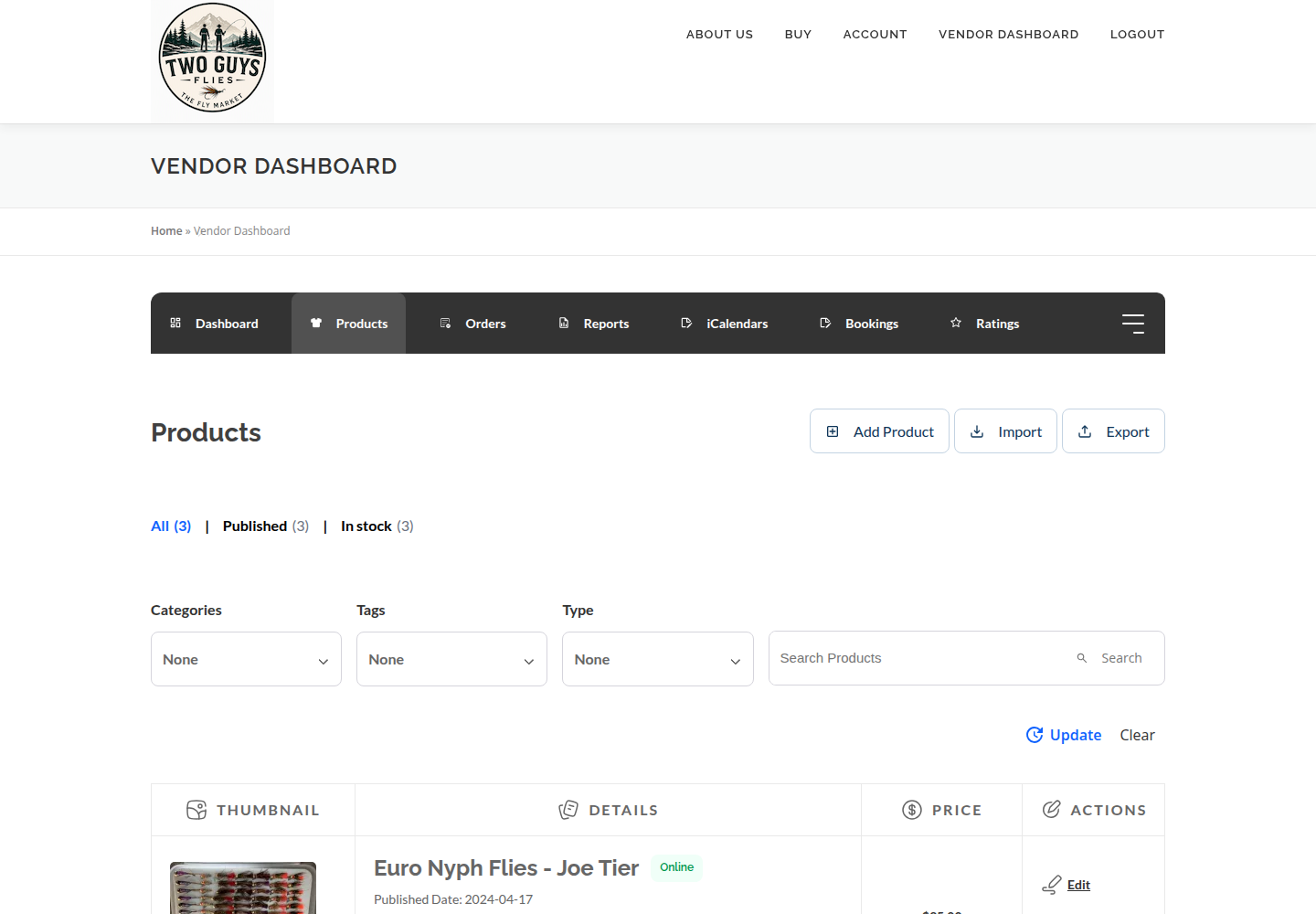
- In your vendor dashboard open Products, then Add Product.
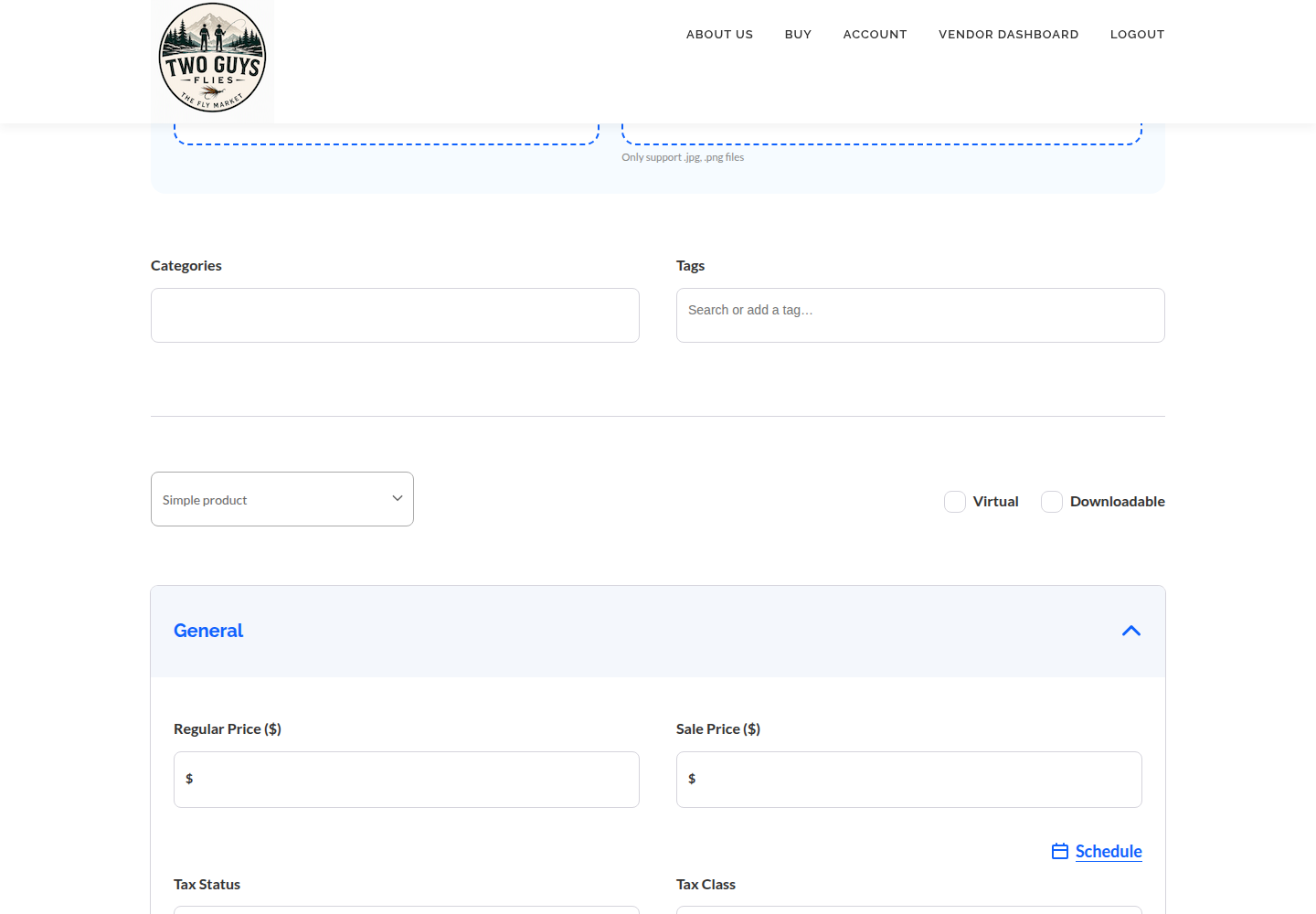
- Choose Simple as the product type for this new product. This does not change your storefront or other products.
- Write a clear name. Put the pattern, size and quantity in the title.
- Write the description: what is included, what is sold, how it is packed, and how long it takes to ship.
- Choose the most accurate marketplace category. Accurate categories are how buyers find you.
- Enter the price for the whole quantity named in the title.
- Upload your own images. Show the item against a plain background and add one scale shot.
- Where enabled, set stock quantity and a SKU so you do not oversell.
- For a physical item, enter weight, dimensions and shipping class. Mark it virtual or downloadable only if nothing is shipped. See Orders, Shipping & Payouts.
- Review the preview, then save as a draft or submit for review, according to the permissions on your account. Not every vendor can publish directly.
#Example: one dozen size 14 Parachute Adams
A complete simple listing, written so the buyer knows exactly what arrives:
Title: Parachute Adams, size 14, one dozen. Sold as one dozen hand-tied flies on barbless hooks, packed in a compartment box. Ships in 3 business days. Price is for the full dozen. Not sold individually; see the variable listing for other sizes.
#Say three things plainly
- Quantity sold. "One dozen" or "single fly" in the title, not only in the description.
- Fulfilment time. The working days between order and shipping.
- What is included. Box, tippet, card, instructions: list it.
#When simple is not enough
If the same pattern comes in several sizes or colours, build one listing with choices using Variable Products. If buyers pick dates, use Booking Products. For repeating deliveries, see Subscriptions.
#About publishing
Every vendor can create Simple, Variable, Booking and Subscription products. Choose the product type in Add Product, not in storefront settings. Optional fields and tools may vary; if one described here is missing, ask the marketplace team for help.
#Troubleshooting
The Simple option is not there.
All vendors can use Simple products. Check that you are in Products → Add Product. If it is still missing, contact marketplace support to investigate the dashboard.
I saved, but the product is not public.
Your account may submit for review instead of publishing directly. Wait for approval, or ask the marketplace.
Shipping cost looks wrong at checkout.
Check weight, dimensions and shipping class. Do not write shipping prices into the description. Rates come from the marketplace configuration.
#Final checklist
Your ticks are saved in this browser only.
#Screenshots