Storefront
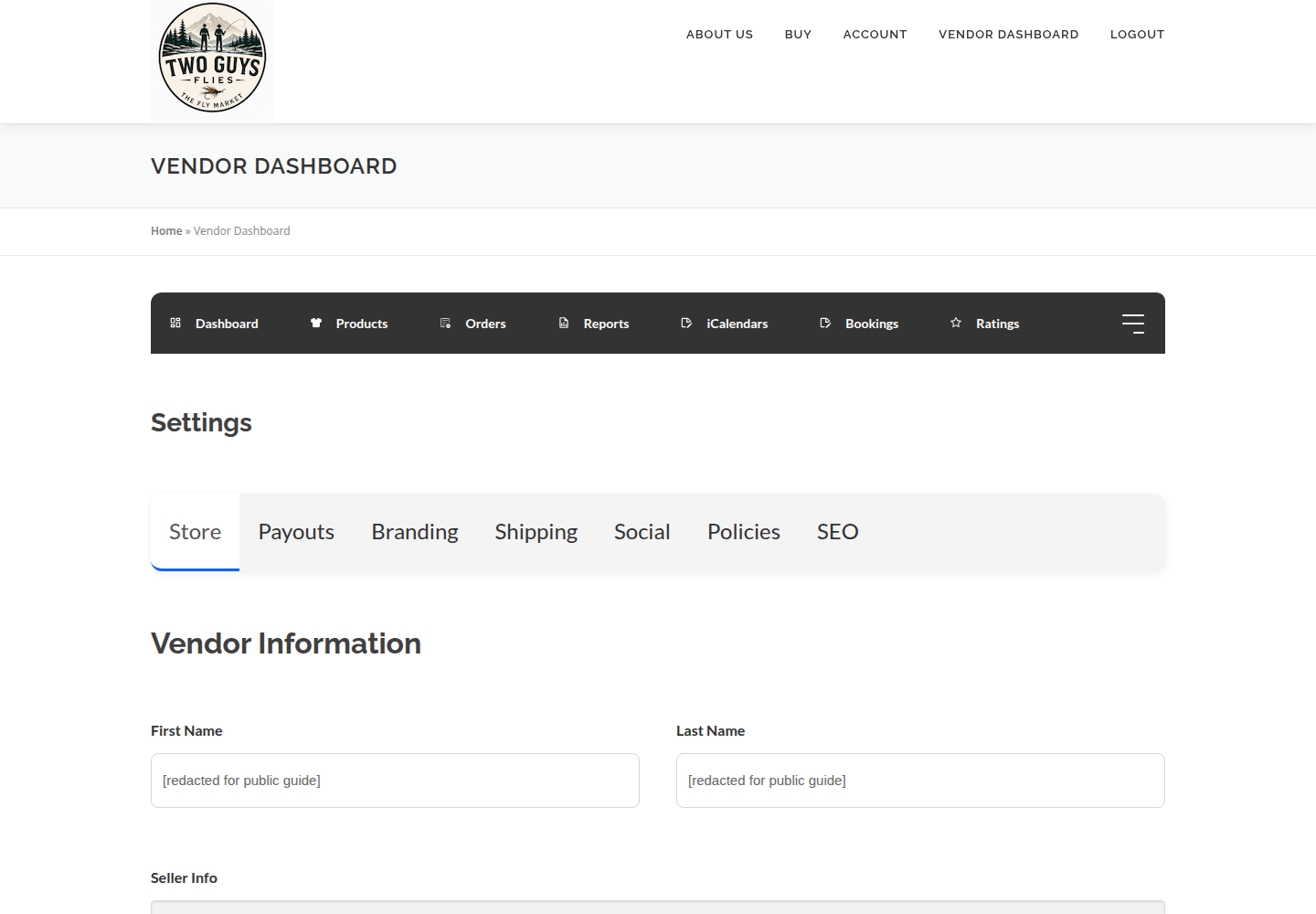
Your storefront is the page buyers read before they trust you with money. Set up your name, bio and branding here; choose a product type separately each time you add a new product.
#Before you start
- An approved vendor account. The dashboard is only available after the marketplace approves your application. If you have not applied, start at the vendor application.
- A store name, a one-sentence description, and a short seller bio written in your own words.
- A logo and a banner image that you own or have permission to use.
- Your shipping, return and cancellation policies written down in plain language.
#Steps
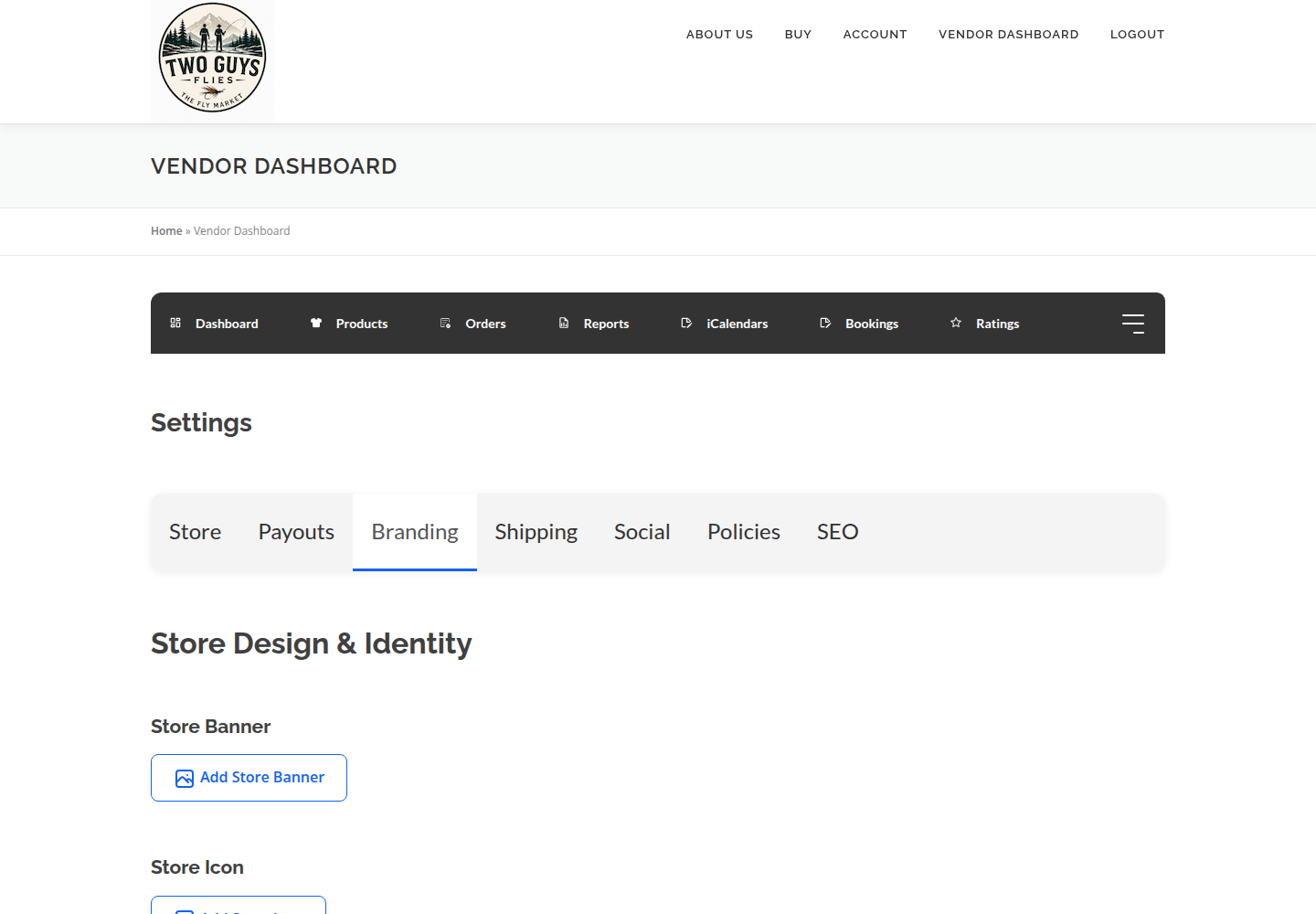
- Sign in on the marketplace and open Settings in your vendor dashboard. This is an account page, so you will be asked to sign in.
- Fill in identity: store name, a short description and your seller bio. Lead with what you make or offer, not with adjectives.
- Add customer-facing information the form asks for, such as support email or phone. Use a business contact, not a private one.
- Upload branding: a square logo and a wide banner. Keep important detail away from the edges, because banners crop differently on phones.
- Add social links only for accounts you actively maintain.
- Write your store policies: how long you take to ship, what you accept back, and how cancellations work. Keep them consistent with the marketplace policy and see Orders, Shipping & Payouts.
- Save the settings, then view your public store on a desktop screen and on a phone. Check that the name, logo and banner read well at both sizes.
#Example description for a hand-tied fly seller
Short, specific and honest about how the flies are made:
Hand-tied trout and smallmouth flies from a bench in western North Carolina. Every pattern is tied in small batches and checked hook by hook before it ships. Most orders leave within three business days.
#One storefront, multiple product types
Your storefront does not have a product-type setting. All vendors can use Simple, Variable, Booking and Subscription products.
Choose the type in Products → Add Product for each new product. Your store can contain more than one product type—for example, individual flies, size/color variations, a booked lesson and a monthly fly box.
The reading paths for fly tiers, hosts, artists and guides organize these instructions. They do not restrict your account or determine which products you can create.
#Store name versus product title
Your store name identifies you across the marketplace. It stays the same on every listing. A product title describes a single thing you sell, for example "Parachute Adams, size 14, one dozen".
Do not put your store name into every product title to fake authority, and do not use a product name as your store name. Buyers search for the item, then notice the seller.
#What never belongs in public text
- Private home addresses. If you need to tell a buyer where to meet or pick up, do it after a booking, in the way described in Property Hosts & Private Water or Fishing Guides & Instructors.
- Banking, tax or identity numbers. Payout details are entered only in the secure provider screen described in Orders, Shipping & Payouts.
- Personal phone numbers you do not want contacted.
#Where the detail lives
Keep the storefront about you. Product instructions live in Simple Products and Variable Products; shipping, tax and payouts live in Orders, Shipping & Payouts.
Every vendor can create Simple, Variable, Booking and Subscription products. Choose the product type in Add Product, not in storefront settings. Optional fields and tools may vary; if one described here is missing, ask the marketplace team for help.
#Troubleshooting
I cannot open the dashboard.
The dashboard needs an approved account. If you applied recently, wait for approval, or call the marketplace on (828) 283-0363.
My banner looks cropped on my phone.
Re-export it with the subject in the centre and generous empty space left and right, then upload it again and recheck on mobile.
A field in these instructions is missing from my settings.
Not every field is enabled for every account. Skip it and carry on, or ask the marketplace.
#Final checklist
Your ticks are saved in this browser only.
#Screenshots