Variable Products
A variable product is a single listing with selectable options such as size, colour or quantity. Buyers see one page; you control the price and stock of every combination.
#Before you start
- A list of the options you offer, such as sizes 6, 8, 10 and colours olive, black.
- A price (and ideally stock) for each purchasable combination.
- A photo per variation if the look differs.
#Steps
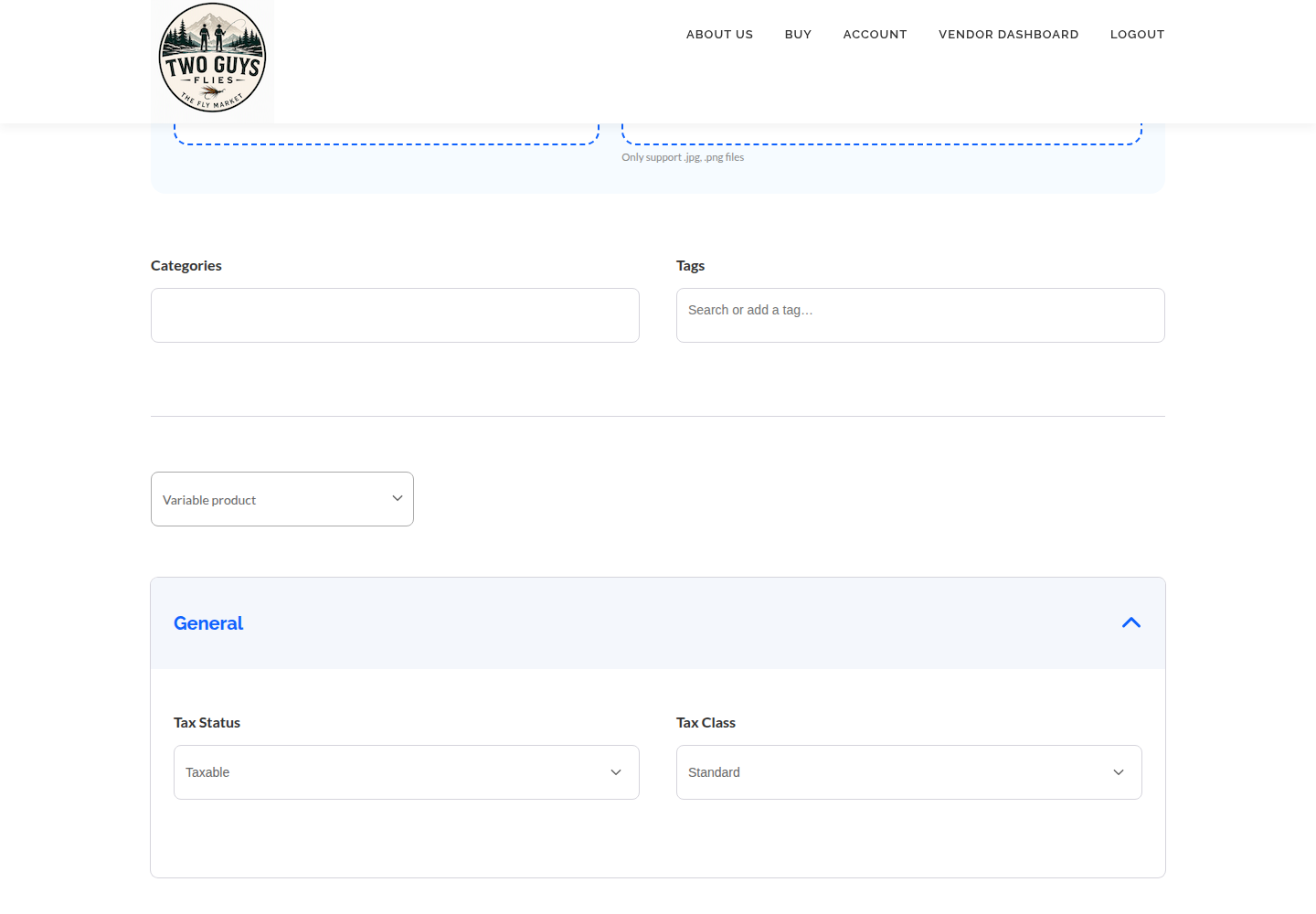
- Open Products, then Add Product, and choose Variable.
- Name and describe the product as you would a simple one. See Simple Products.
- Open the attributes area. Create an attribute such as Size and add its values: 6, 8, 10. Add a second attribute, Colour, with olive and black.
- Enable "used for variations" (or the equivalent wording) on each attribute.
- Save the attributes. This step matters: attributes are not variations, and nothing is generated until they are saved.
- Generate variations, or add the ones you want individually. You do not have to sell every combination.
- Open each variation and enter a price. Add stock and SKU where enabled, and an image if the look differs.
- Set a default selection if you want the page to open with one choice chosen.
- Enter shipping data where enabled. See Orders, Shipping & Payouts.
- Save or submit, then open the public page and click through every combination.
#Example: Woolly Bugger, sizes 6, 8 and 10, olive and black
Two attributes give six combinations. Create all six, each with its own price and stock:
Olive / 6, Olive / 8, Olive / 10, Black / 6, Black / 8, Black / 10. Sold as a pack of three flies. Size 6 priced higher if you use more material. Mark a combination out of stock rather than deleting it when you run out.
#Attributes are not variations
An attribute is a list of choices. A variation is a specific purchasable combination with its own price and stock. You can have attributes without variations, and then the buyer cannot add anything to the cart.
#Labels may differ on the front end
The names you see while editing can differ from what buyers see. Check the public page rather than trusting the editor wording.
#Availability of the type
Every vendor can create Simple, Variable, Booking and Subscription products. Choose the product type in Add Product, not in storefront settings. Optional fields and tools may vary; if one described here is missing, ask the marketplace team for help.
#Troubleshooting
Buyers see "unavailable" or no Add to cart.
A variation is probably missing a price, or you chose a combination you never created. Open each variation and enter a price.
My variations list is empty.
The attributes were not saved, or were not marked for variations. Save the attributes, then generate again.
The combination I want is greyed out.
It does not exist as a variation or is out of stock. Add it or restock it.
I cannot create variable products.
Permissions may be disabled for your account. Ask the marketplace.
#Final checklist
Your ticks are saved in this browser only.
#Screenshots